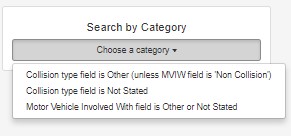
Searching for collisions on the Data Editor module is conducted through three search windows:
Date and/or street name;
Case ID; or
Category
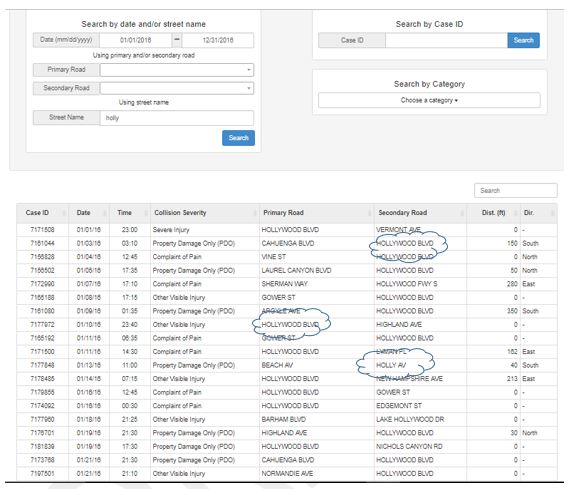
Search by date and/or street name requires at least a date range input. Additional information such as primary and/or secondary roads or the street name would significantly narrow the search. The date range is defaulted to a 12-month period unless changed. The search by “primary road” or “secondary road” or “street name” are optional and can be added to refine the search query. When searching by “street name,” the search box can be entered for complete or partial/portions of street names. For example, when searching for street names with the name “holly,” the query results show any streets in the city database and returns “Hollywood Blvd”, “Holly Av”, and “Lake Hollywood Dr”. See figure below.
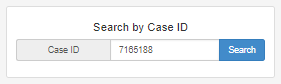
Searching by Case ID is useful when the case ID’s are either known or a set of case ID’s are provided from hardcopy files or previously queries from the database. Only one (1) Case ID can be entered at a time, and when searched, will bring up the collision record for edit.
The third search method is “Search by Category.” There are three categories shown in the figure below. Once the category is selected, the query will provide results for all collisions in the entire database.
These queries are designed to show results for Collision type and MVIW fields that are Other or Not Stated. Rather than flag them as errors, they are categorized separately since the collision type and MVIW fields are shown directly in the traffic accident summary report and are evident to the engineers viewing the report.
Find all collisions where the MVIW field is ‘Not Stated.’
Find all collisions where the collision type is ‘Not Stated.’
Find all collisions where the collision type is ‘Other’; unless the MVIW field is ‘Non Collision.’